
This website is being transitioned to the EQRS.CMS.gov website on January 19, 2026.
The MyCROWNWeb.org website will be decommissioned on February 13, 2026.
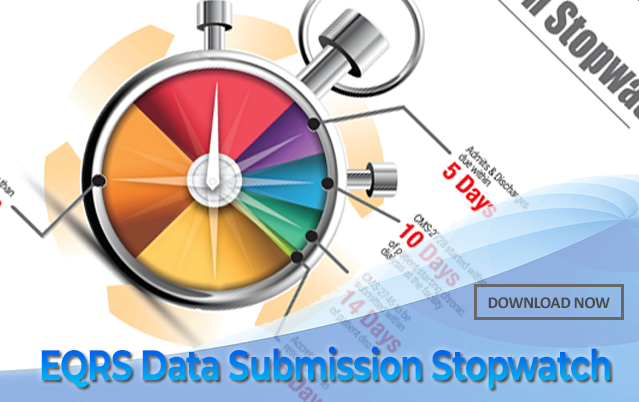


Important Links
 To view the new guidelines in PDF format, click
 - Training from 9/17/2024
- Guides and Other Resources
Learn About EQRS
MyCROWNWeb.org provides a number of tools to help the ESRD community become better users of the EQRS system. Please visit the pages and quick links on the website for more information on the End Stage Renal Disease (ESRD) Quality Reporting System (EQRS). Please check out the Latest Official News from CMS and Event Announcements for more latest news.


 Latest Official News from CMS
Patient Events Summary and Patient Roster Dashboards Available in EQRS
|

|
Patient Events Summary and Patient Roster Dashboards Available in EQRS |
|
November 19, 2025 |
|
On November 19, 2025, the Centers for Medicare & Medicaid Services (CMS) released new Patient Events Summary and Patient Roster Dashboards in the End-Stage Renal Disease (ESRD) Quality Reporting System (EQRS). These dashboards will replace the Patient Events and Patient Roster Reports that currently exist in EQRS. The dashboards are available to all end users including CMS staff, corporate dialysis organization staff, ESRD Network staff, and dialysis facility staff. The following provides all users with instructions on how to access these dashboards. |
|
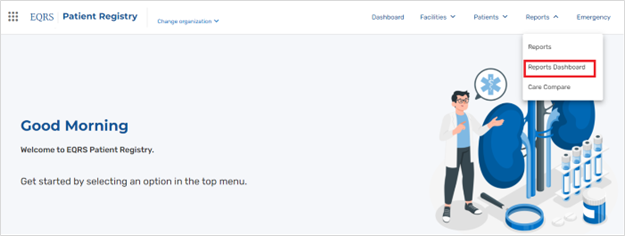
Patient Events Summary Dashboard This dashboard allows users to obtain a list of admissions, discharges, and treatment information for patients that fall within a given date range. It will ease the process of viewing a list of patients admitted/discharged at a facility or facilities within a set date range under the user’s purview. Accessing the Patient Events Summary Dashboard To access the Patient Events Summary Dashboard, log in to the Patient Registry in EQRS and select Reports Dashboard from Reports in the navigation bar (Figure 1). |
Figure 1. Navigating to Patients Events Summary Dashboard
|
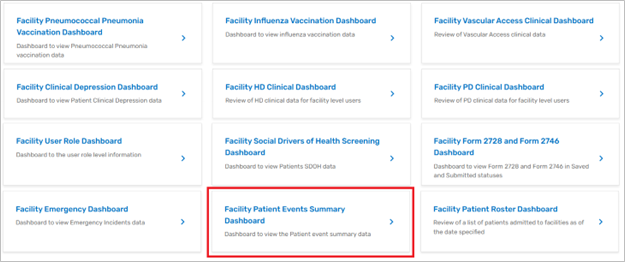
| Click the Patient Events Summary Dashboard option to display the dashboard. Please note that the naming configuration is based on the user’s role. Therefore, the name will be displayed as either CMS Patient Events Summary Dashboard, Corporate Patient Events Summary Dashboard, Network Patient Events Summary Dashboard, or Facility Events Summary Dashboard. Figure 2 provides an example of selecting a facility level dashboard. |
| Figure 2. Selecting Facility Patient Events Summary Dashboard
|
|
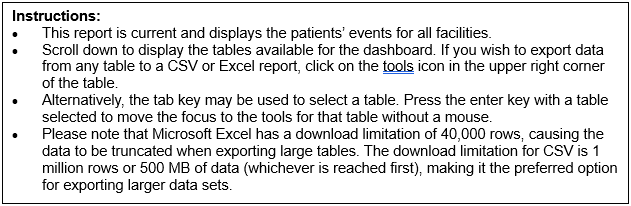
Dashboard Overview The top The top of the Patient Events Summary Dashboard presents details regarding the data source, refresh frequency, and instructions for using the dashboard (Figures 3 and 4). |
| Figure 3. Details on Data Used in Dashboard
|

| Figure 4. Instructions for Using the Dashboard
|
|
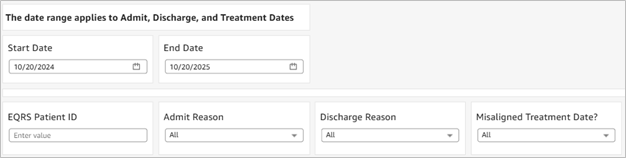
Filtering Options The facility level dashboard can be filtered by Start Date and End Date, EQRS Patient ID, Admit Reason, Discharge Reason, and Misaligned Treatment Date (Figure 5). Users of the CMS or Corporate or Network versions of this dashboard have additional filters. The CMS and Corporate dashboards have options to filter by Facility CCN and Network. Additionally, CMS and Network level users can filter by Electronic Data Interchange (EDI) Organization. |
| Figure 5. Filtering Options for the Facility Patient Events Summary Dashboard
|
| The summary table in the dashboard, Patient Events – Patient Details, provides a list of the patients with variables that include but are not limited to admission date, admission reason, treatment, discharge reason, discharge subcategory, and date of death, which would be reported if the patient has died (Figure 6). Please note that the patients displayed in the dashboard will depend on which filters are selected. |
| Figure 6. Patient Events – Patient Details
|

| A definition of the Misaligned Treatment Date column header can be found in Figure 7. |
| Figure 7. EQRS Explanation of Misaligned Treatment Date?
|

|
Patient Roster Dashboard This dashboard allows users to review a list of patients admitted to your facility as of a specified date. Accessing the Patient Roster Dashboard To access the Patient Roster Dashboard, log in to the Patient Registry in EQRS and select Reports Dashboard from Reports in the navigation bar (Figure 1). |
Figure 8. Navigating to Patient Roster Dashboard
|
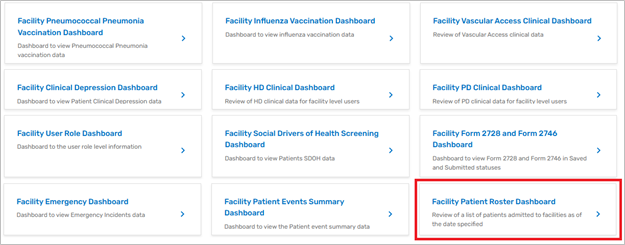
| Click the Patient Roster Dashboard option to display the dashboard. Please note that the naming configuration is based on the user’s role. Therefore, the name will be displayed as either CMS Patient Roster Dashboard, Corporate Patient Roster Dashboard, Network Patient Roster Dashboard, or Facility Roster Dashboard. Figure 9 provides an example of the Facility level dashboard. |
| Figure 9. Selecting Facility Patient Roster Dashboard
|
|
Dashboard Overview The top of the Patient Roster Dashboard presents details regarding the data source, refresh frequency, and instructions for using the dashboard (Figures 10 and 11). |
| Figure 10. Details on Data Used in Dashboards
|
| Figure 11. Instructions for Using the Dashboard
|
|
Filtering Options The Facility Patient Roster Dashboard can be filtered by an “as of” date, by EQRS Patient ID, and by Primary Dialysis Setting (Figure 12). Users of the CMS or Corporate or Network versions of this dashboard have additional filters. The CMS and Corporate dashboards have options to filter by Facility CCN, Network, and Facility State. Additionally, CMS and Network level users can filter by Electronic Data Interchange (EDI) Organization. |
| Figure 12. Facility Patient Roster Dashboard Filtering Options
|

| The summary table in the dashboard, Patient Roster – Patient Details, provides a list of the patients with variables that include but are not limited to demographic information, admission date, admission reason, primary cause of renal failure, and treatment information (Figure 13). The patients displayed in the dashboard will depend on which filters are selected. |
| Figure 13. Patient Roster – Patient Details
|

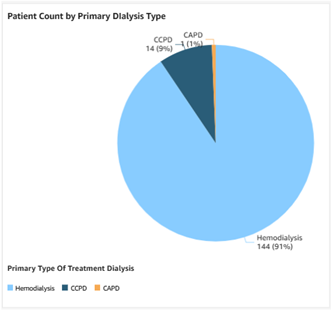
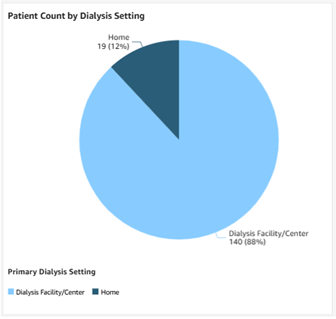
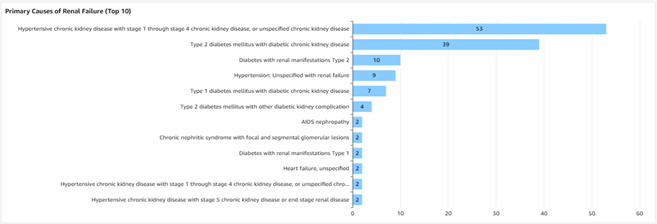
| The Patient Roster Dashboard also provides graphs displaying Patient Count by Primary Dialysis Type (Figure 14), Patient Count by Dialysis Setting (Figure 15), and the top 10 Primary Causes of Renal Failure (Figure 16). |
| Figure 14. Patient Count by Primary Dialysis Type
|
| Figure 15. Patient Count by Dialysis Setting
|
| Figure 16. Primary Causes of Renal Failure (Top 10)
|
|
For assistance with EQRS technical issues, please contact the Center for Clinical Standards and Quality (CCSQ) Service Center. The CCSQ Service Center is open Monday-Friday 8 a.m. to 8 p.m. Eastern Time and can be reached via phone at 866-288-8912, email at qnetsupport-esrd@cms.hhs.gov, or online at the CCSQ Support Center. For assistance with general EQRS and ESRD Quality Incentive Program (QIP) questions, please contact the ESRD QIP Team via the QualityNet Q&A Tool. |
New Form 2728 and Form 2746 Dashboard Available in EQRS
|
|
New Form 2728 and Form 2746 Dashboard Available in EQRS |
|
September 8, 2025 |
| On August 28, 2025, the Centers for Medicare & Medicaid Services (CMS) released a new Form 2728 and Form 2746 Dashboard in the End-Stage Renal Disease (ESRD) Quality Reporting System (EQRS). The dashboard will ease the process of viewing CMS forms in either saved or submitted statuses in EQRS. It will be available to all end users including CMS staff, corporate dialysis organization staff, ESRD Network staff, and dialysis facility staff.
This EQRS News Flash provides all users with instructions on how to access and view the new dashboard. |
|
Accessing the New Form 2728 and Form 2746 Dashboard To access the new Form 2728 and Form 2746 Dashboard in EQRS, log in to the Patient Registry in EQRS and select Reports Dashboard from Reports in the navigation bar (Figure 1). |
Figure 1. Navigation to the Reports Dashboard
|
| After going to the Reports Dashboard page, click the Form 2728 and Form 2746 Dashboard option to display the dashboard. The naming configuration of the dashboard is based on your user role. Therefore, the name will be displayed as either CMS Form 2728 and Form 2746 Dashboard, Corporate Form 2728 and Form 2746 Dashboard, Network Form 2728 and Form 2746 Dashboard, or Facility Form 2728 and Form 2746 Dashboard. Figure 2 provides an example of a Facility-level dashboard. |
| Figure 2. Selecting the Form 2728 and Form 2746 Dashboard
|
|
Dashboard Overview The top of the Form 2728 and Form 2746 Dashboard presents details regarding the data source and refresh frequency (Figure 3) and instructions on how to use different features of the dashboard (Figure 4). |
| Figure 3. Details on Data Used in Dashboard
|
| Figure 4. Instructions
|
|
National and Facility Summary Tables The National and Facility Summary tables allow users the option to filter by Form Entered Date. The date entered is the actual date that a form was added to EQRS. Please note that the system automatically defaults to a date range going back one year from the current calendar date. This filter applies to all of the summaries, the Form 2728 details table, and the Form 2746 details table. Thus, the dates in this filter must be changed if a facility needs to see data outside of this default date range (Figure 5). |
| Figure 5. Filter Options for National and Facility Summaries
|
| The first data table in the dashboard, National Summary, displays the number of submitted and saved forms by type (Initial, Re-entitlement, or Supplemental), at the national level (Figure 6). |
| Figure 6. National Summary
|
| The second data table in the dashboard, Facility Summary, displays the number of submitted and saved forms by type (Initial, Re-entitlement, or Supplemental), at the facility level (Figure 7). |
| Figure 7. Facility Summary
|
| The 2728 Forms Details – Patient Data table can be filtered by EQRS Patient ID, Form Status, Form Type, Date Started at Current Facility, and Date Submitted (Figure 8). To limit your view to forms in saved status, select “Saved” under Form Status. |
| Figure 8. Filter Options for 2728 Forms Details
|
| The 2728 Forms Details Patient Data table will display all the form fields for all saved and submitted Form CMS-2728s started by the facility (Figure 9). |
| Figure 9. 2728 Forms Details – Patient Data
|
| The 2746 Forms Details – Patient Data table can be filtered by EQRS Patient ID, Form Status, Date Submitted and Date of Death (Figure 10). To view forms in saved status, select “Saved” under Form Status. To limit your view to forms in saved status, select “Saved” under Form Status. |
| Figure 10. Filter Options for 2728 Forms Details
|
| The 2746 Forms Details Patient Data table will display all the form fields for all saved and submitted Form CMS-2746s started by the facility (Figure 11). |
| Figure 11. 2746 Form Details – Patient Data
|
|
For assistance with EQRS technical issues, please contact the Center for Clinical Standards and Quality (CCSQ) Service Center. The CCSQ Service Center is open Monday-Friday 8 a.m. to 8 p.m. Eastern Time and can be reached via phone at 866-288-8912, email at qnetsupport-esrd@cms.hhs.gov, or online at the CCSQ Support Center. For assistance with general EQRS and ESRD Quality Incentive Program (QIP) questions, please contact the ESRD QIP Team via the QualityNet Q&A Tool. |
Event Announcements
January EQRS Stakeholder Meeting
|


Privacy Statement • Dec 9, 2025 @ 12:57 pm